📘 Tutorial run-comfyui-wan2
- This tutorial reflects my own experience on RunPod.
- Always consult the excellent official RunPod documentation.
Common tasks
- Start a pod
- Connect to your pod
- Open the web terminal
- Log in to Code-Server
- Configure secrets
- Download models and LoRAs
- Delete models and LoRAs
- Manage the pod
- Upload and download files
- Use RunPod API
🚀 Starting a Pod
🧩 Choose a Template
Example: 👉 WAN 2.2 T2V (lightx2v)
Steps:
- Choose a GPU
- Edit template settings if needed.
- Choose Volume disk (/workspace)
- Enable Volume encryption if desired.
- Click Deploy On-Demand.
⚠️ CUDA errors when deploying pod

- Deploy in another region.
- Change filter to CUDA 12.8 on the RunPod console
📜 Viewing System Logs
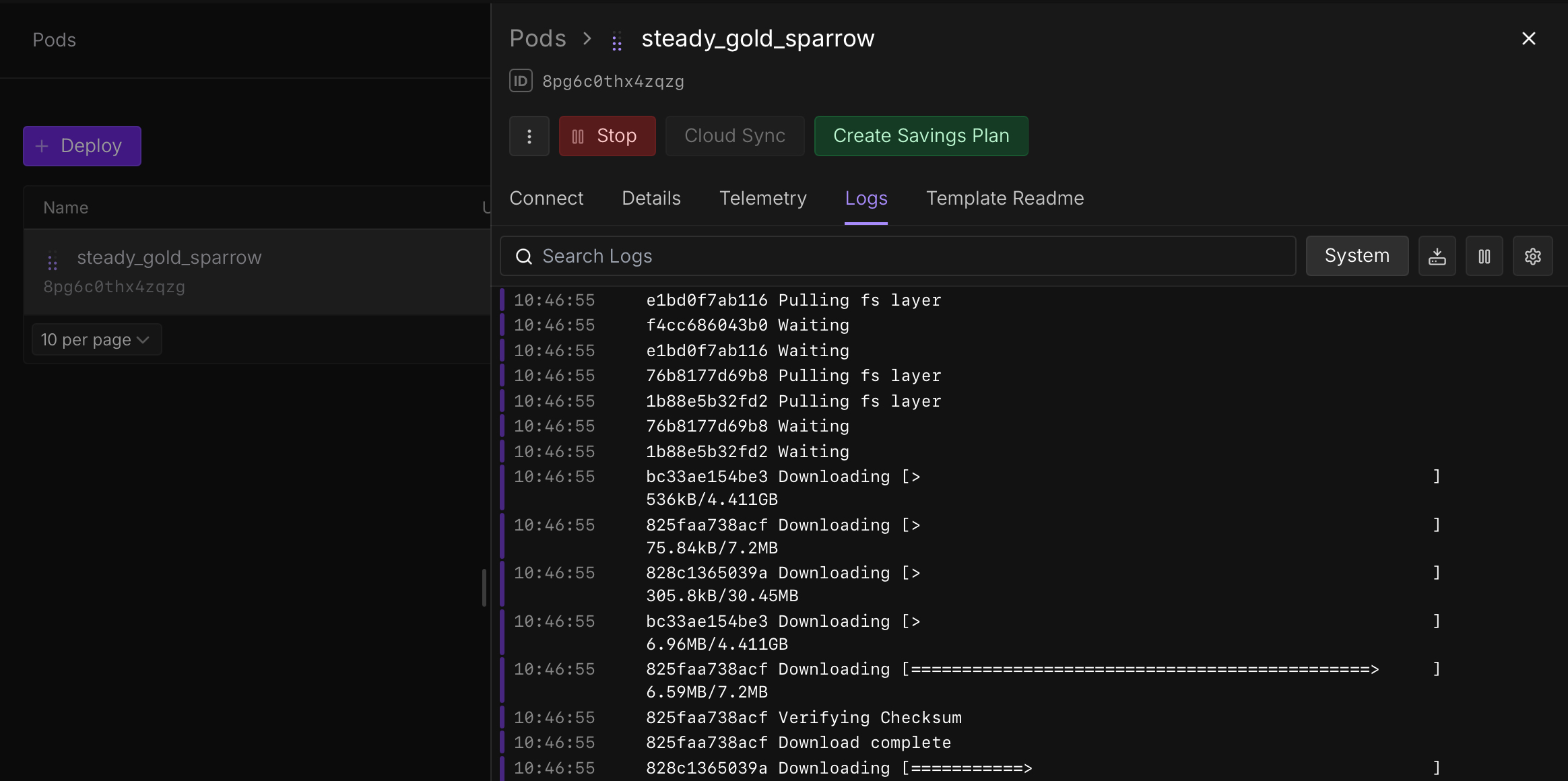
- Go to Logs.
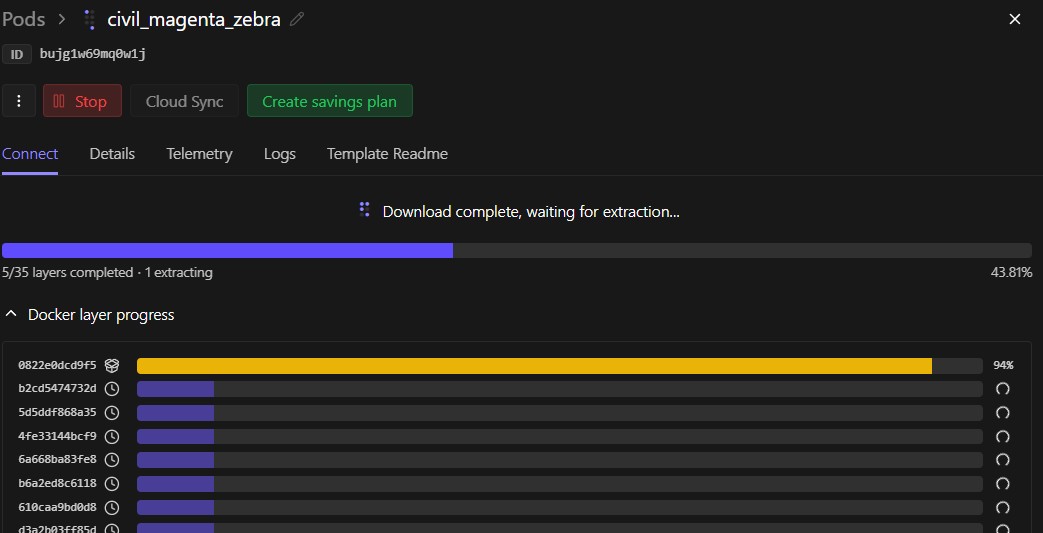
- Loading takes 9–15 minutes depending on region.
- If the image doesn’t begin downloading after 1 minute, delete and redeploy in another region.
Ends with (example):
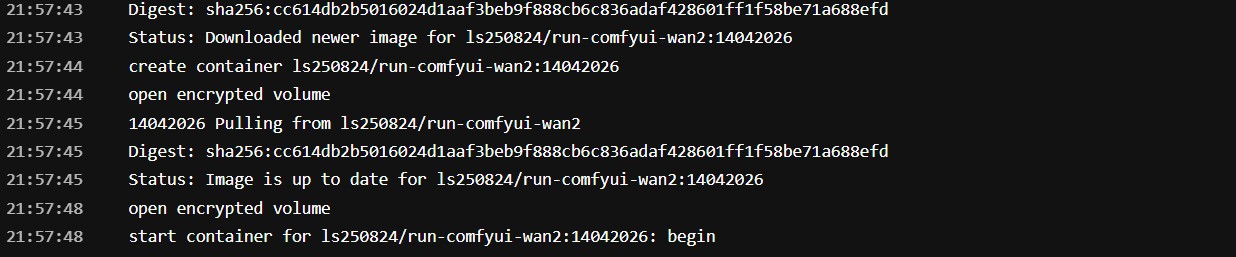
🐳 Viewing Container Logs
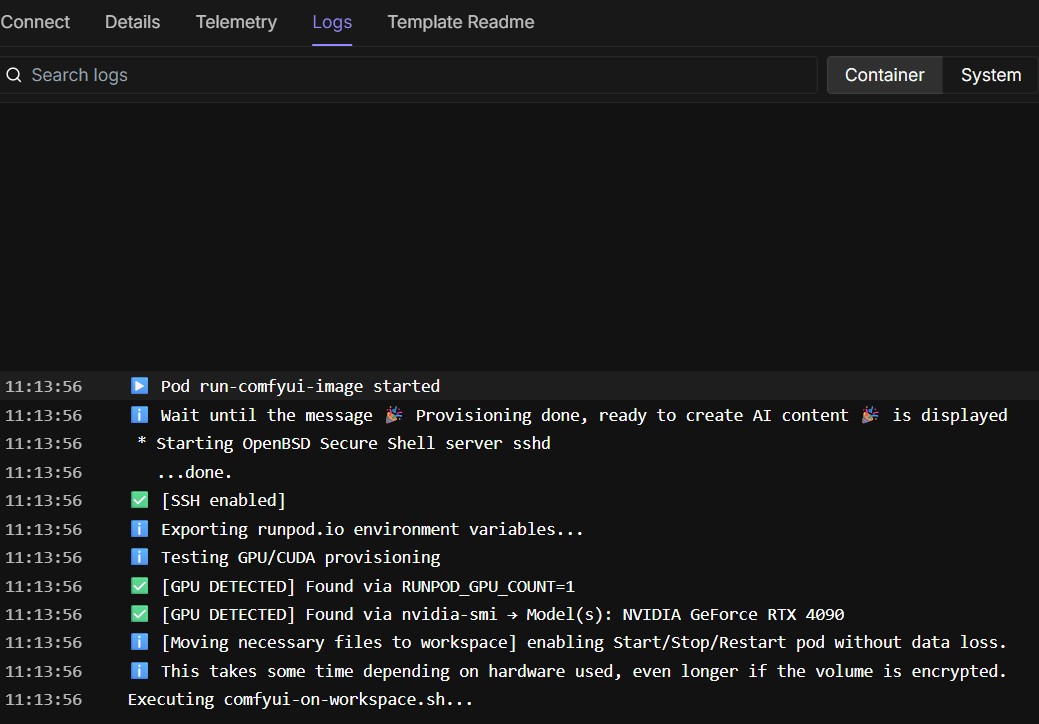
When you see:
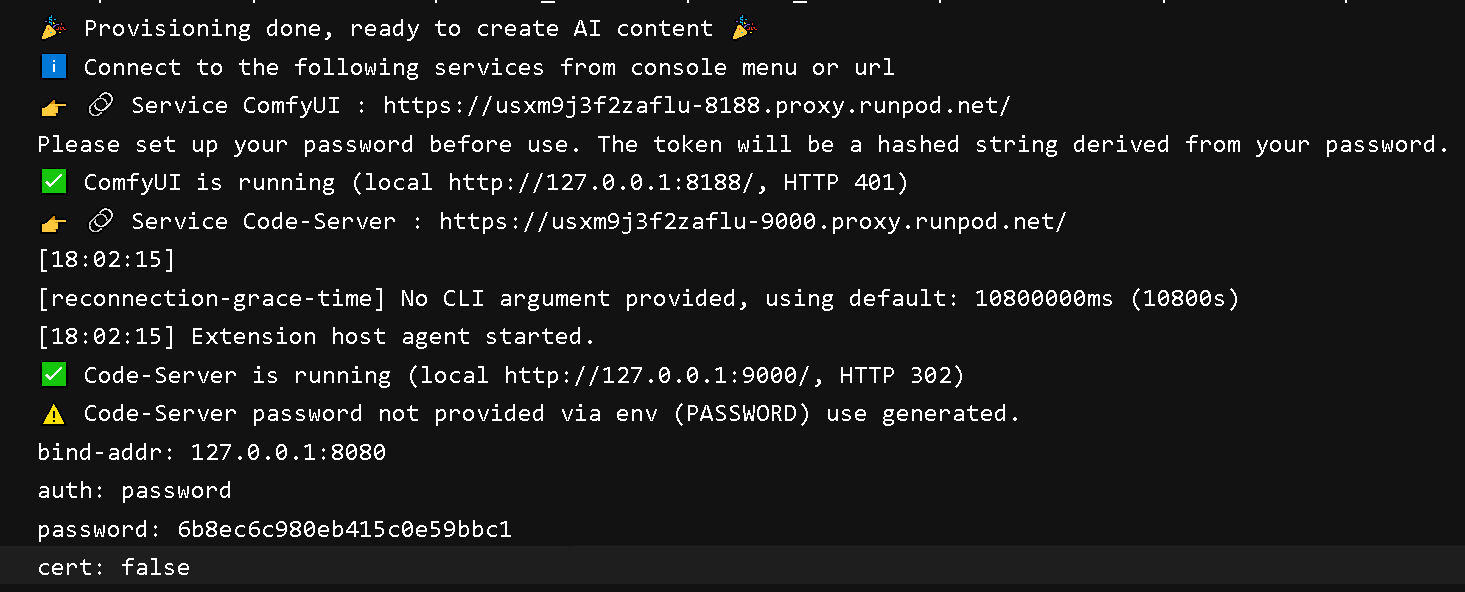
→ Your pod is ready.
⚠️ Hugging Face download takes longer than usual
If the Hugging Face download takes longer than usual, restart the pod and try again. Download time still depends on the file size and the speed of the network connection.
🔌 Connecting to Your Pod

⚠️ Not ready – Make sure your service is running! or browser unauthorized error.
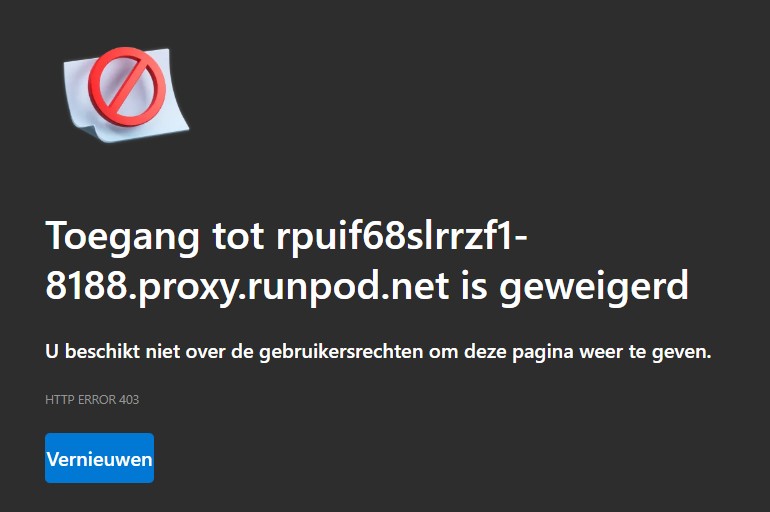
Try to connect with the pod-id and the port number to the proxy. You can find the URLs at the end of the log file in the RunPod console.
- ComfyUI:
https://<pod-id>-8188.proxy.runpod.net/login - Code-Server:
https://<pod-id>-9000.proxy.runpod.net/login
🎨 ComfyUI
- Select tab Connect → ComfyUI
- Set username/password
- Load a workflow from the left menu
- Press Run
- Monitor GPU/RAM via Telemetry
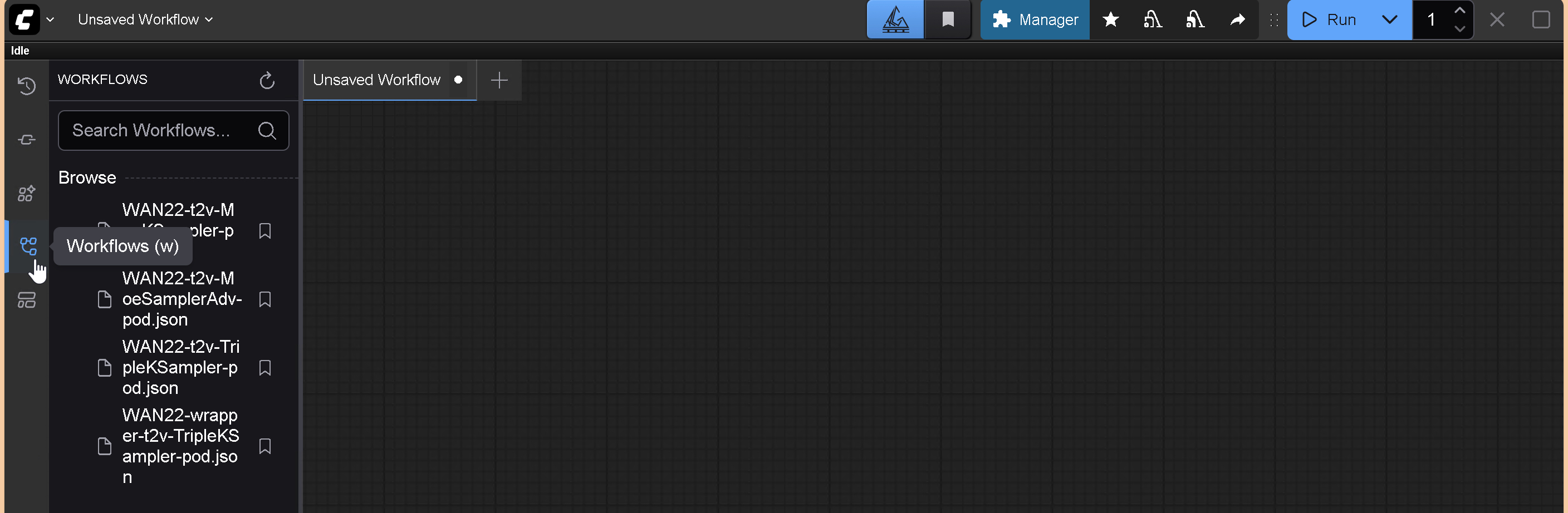
⚠️ ComfyUI's screen remains blank
- Wait one minute and try again.
- Restart your browser and/or clear cache.
- Try with another browser (brave, chrome, edge).
💻 Web Terminal

- Select tab Connect
- Enable web terminal
- Provides terminal access directly in your browser.
🧑💻 Code-Server Login
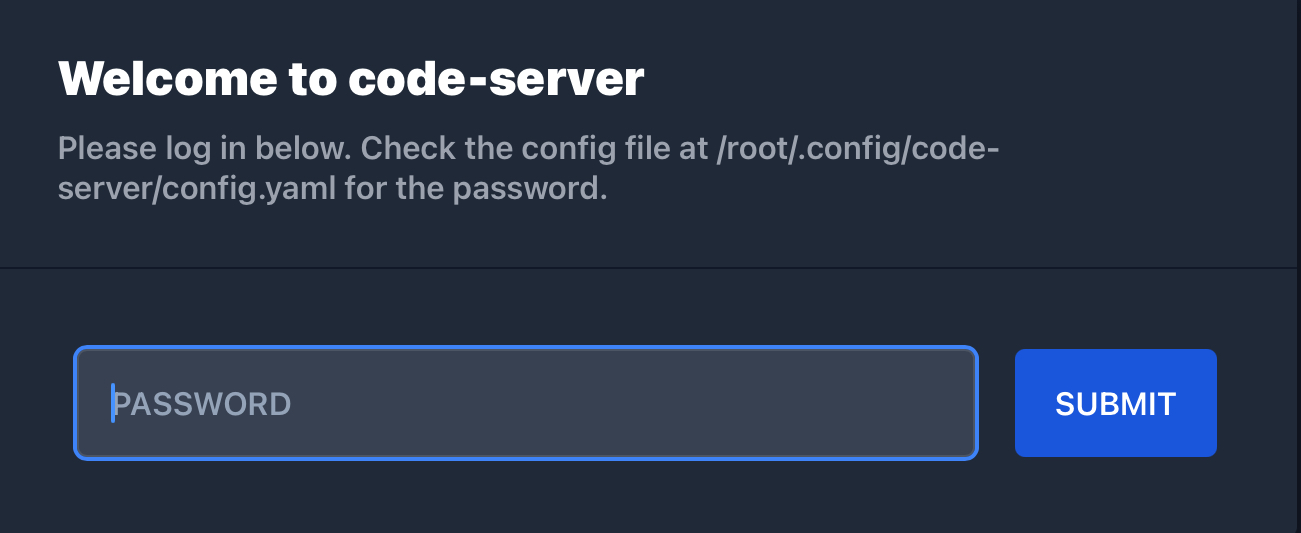
No "PASSWORD" set
- Copy the password displayed at the end of the container log file of the RunPod console or open the web terminal and enter.
Copy the password → log in via the Code-Server service on tab Connect.
Information in pod available
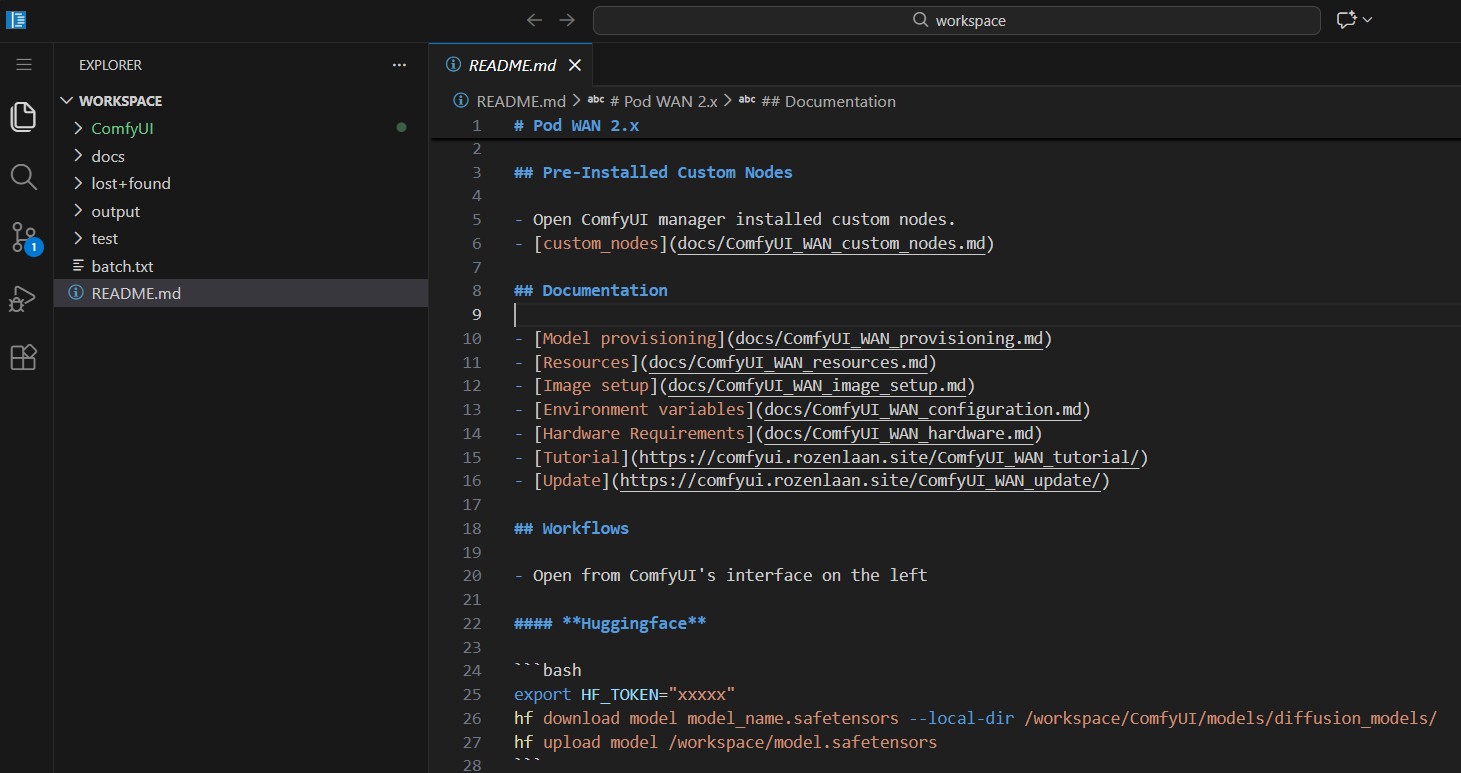
⚠️ Code-Server's screen remains blank
- Wait one minute and try again.
- Restart your browser and/or clear cache.
- Try another browser (brave, chrome, edge).
"PASSWORD" set as env in RunPod template
Log in via the Code-Server service on tab Connect.
🔐 Secrets
Useful secrets:
PASSWORDCIVITAI_TOKENHF_TOKEN
📥 Downloading Models and LoRAs
From web terminal, Code-Server or ComfyUI-Lora-Manager.
🧩 ComfyUI-Lora-Manager
Launch web interface

- Topbar ComfyUI.
- URL displayed at end of container log file.
Civitai token (needed for download)
- Go to preferences and add your token if not set before starting the pod (CIVITAI_TOKEN).
Refresh/Fetch/Download models

- Press Refresh and Fetch to download images for lora's available in the pod.
- Press Download and add the civitai's URL to download the highnoise model (not download link).
- Press Download and add the civitai's URL to download the lownoise model (not download link).
Integration basic
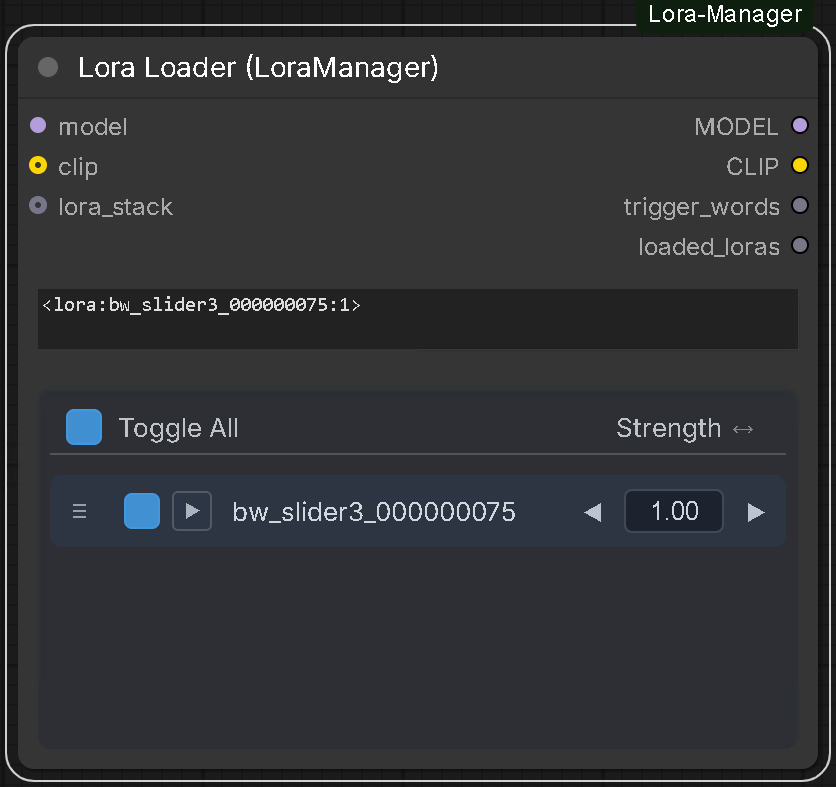
- Add high- and lownoise node Lora-Loader (LoraManager) to your ComfyUI workflow.
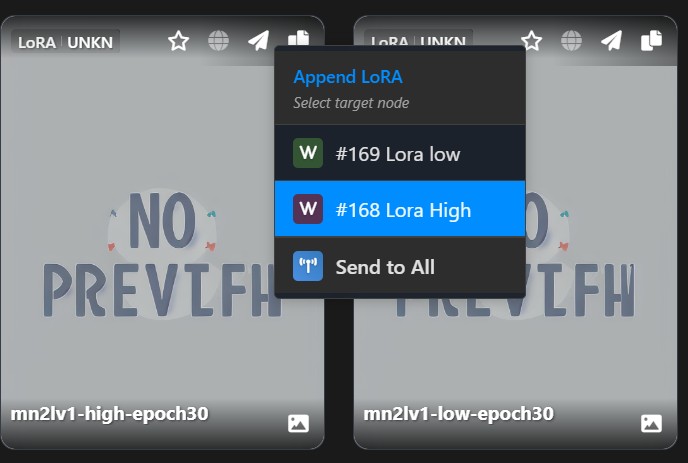
- Press the Paper Airplanes of the low- and highnoise model in the Lora-Manager web interface.
- Your loras are available in your workflow.
🧩 CivitAI CLI
If no "CIVITAI_TOKEN" was set, create or use a free token from the civitai website.
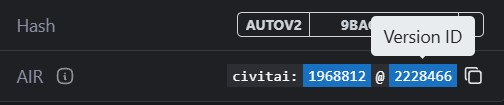
export CIVITAI_TOKEN=“xxxxx”
civitai_com  VERSION_ID /workspace/ComfyUI/models/<loras, etc>
civitai_red  VERSION_ID /workspace/ComfyUI/models/<loras, etc>
civitai_com 2228466 /workspace/ComfyUI/models/loras/
civitai_red 2893442 /workspace/ComfyUI/models/loras/
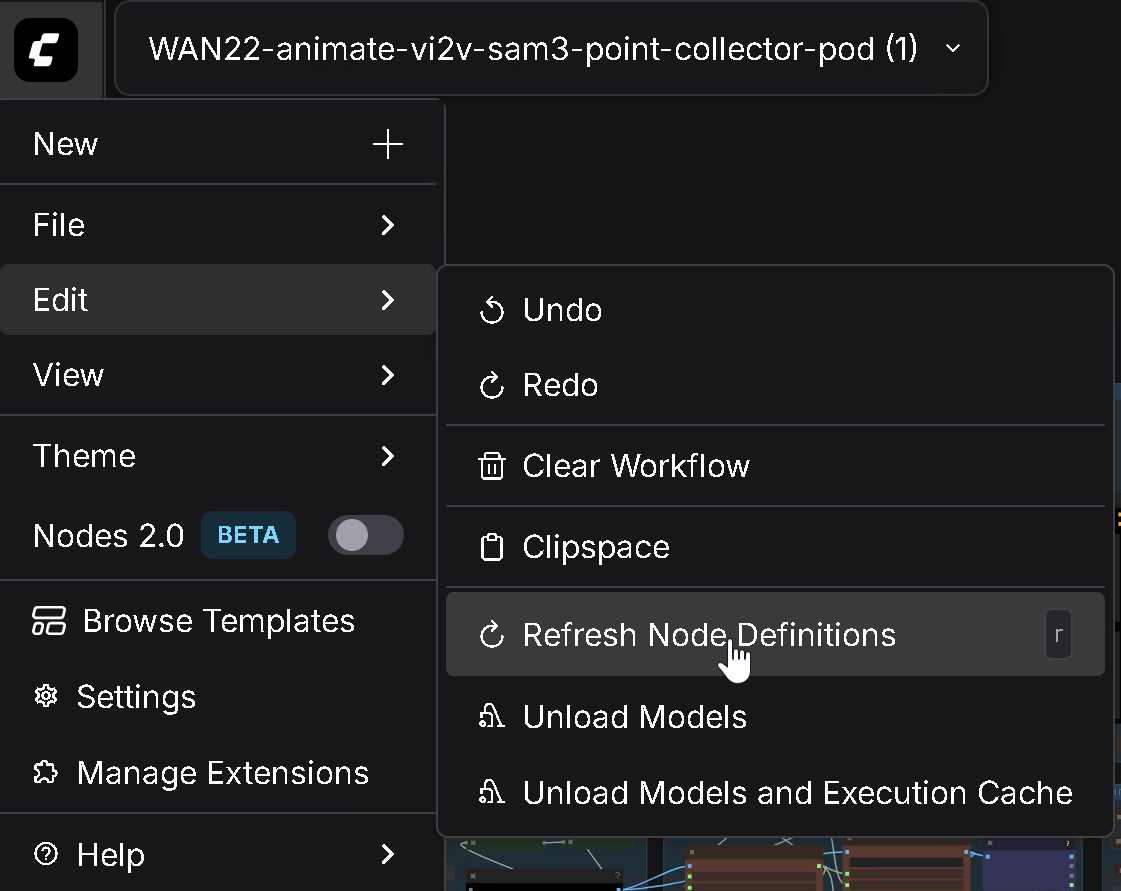
Refresh ComfyUI pressing key r.
☁️ HuggingFace cli
"HF_TOKEN" is mandatory but needed for gated sites or upload.
Login:
or set token:
Download example from Huggingface.
hf download ricecake/wan21NSFWClipVisionH_v10 wan21NSFWClipVisionH_v10.safetensors --local-dir /workspace/ComfyUI/models/clip_vision
Refresh ComfyUI pressing key r.
Manual provisioning
- Information is available in the pod's documentation.
- Open web terminal or code-server.
🧩 Deleting Models and LoRAs
Web Console or code-server
- Type "ncdu" in the console
- Follow the instructions.
Lora Manager
- Select lora
- Select delete.
🧩 ComfyUI-manager
- Topbar or menu
