MiniMax inference with ComfyUI
Run MiniMax H3 video and native-audio generation in ComfyUI on RunPod. The template provisions the models, VAEs, custom nodes and example workflows needed for text-to-video, image-to-video, first/last-frame video and reference-to-video generation.
What to expect
These templates are intended for users who want to run ComfyUI on RunPod and are comfortable following technical setup steps. No Linux expertise is required for normal use, but basic familiarity with RunPod pods, logs, tokens and file management is helpful.
The pod is an experimental workspace for video creators who want to combine generation models, editing models, LoRAs and custom nodes in open and flexible creative pipelines. It supports video generation, identity-aware video generation, prompt enhancement and long video generation.
The approach is aligned with the open-model discussion in Eric Hartford's Uncensored Models: local and open AI systems give advanced users more ownership, control and composability. The pod is a technical workspace for responsible use rather than a content platform or safety policy.
Included features
- Automatic model provisioning through environment variables.
- Model downloads selected for the available VRAM and GPU architecture (Ada Lovelace or Blackwell).
- GPU-accelerated video encoding with FFmpeg and NVENC to speed up video creation on slower vCPUs in available on host (auto check).
- CUDA 13.0 runtime with compiled attention acceleration.
- Authentication for ComfyUI, Code Server, Hugging Face and CivitAI.
- Uncensored Heretic Qwen-VL text encoders for inference and prompt enhancement.
- LoRA Manager, installed custom nodes and accelerators.
- Ready-to-use example workflows.
- 8-step turbo LoRAs, including LightX2V and Hyperflow.
- Native
llama.cppand CUDA-enabledllama-cpp-pythonsupport. - Upload/download omichar and Refmod files.
RunPod deployment
Start here: Deploy and start the MiniMax template on RunPod.
Once the pod is running, use the workflow examples below to choose what you want to create. Follow the MiniMax tutorial for the steps from opening ComfyUI to running your first workflow.
Choose a workflow
Start with the generation task, then choose a standard, Turbo, LightX2V, PDD Acc or Hyperflow variant. The JSON filenames below identify the workflows in pod/minimax; the guide links lead to the examples further down this page. Availability on your pod depends on the selected template and provisioned models.
Video generation
| Goal and input | Workflow JSON | Guide |
|---|---|---|
| Generate video from a text prompt | [Standard T2V] t2v-pod.json, [Turbo T2V] turbo-t2v-pod.json, [LightX2V T2V] lightx2v-t2v-pod.json, [Hyperflow T2V] Hyperflow-t2v-pod.json |
Text-to-video |
| Animate an image or use first/last frames with a prompt | [Standard FL2V] fl2v-pod.json, [Turbo FL2V] turbo-fl2v-pod.json, [LightX2V FL2V] lightx2v-fl2v-pod.json, [Hyperflow FL2V] Hyperflow-fl2v-pod.json |
Image-to-video |
| Guide generation with reference images, video or audio | [Standard R2V] r2v-pod.json, [LightX2V R2V] lightx2v-r2v-pod.json, [Hyperflow R2V] Hyperflow-r2v-pod.json |
Reference-to-video |
| Continue a reference-guided scene across several shots | [LightX2V multi-shot] lightx2v-r2v-multi-shot.json |
Multi-shot |
| Generate connected shots with context pinning | [LightX2V context pin] lightx2v-r2v-multi-shot-context-pin.json, [Hyperflow context pin] Hyperflow-r2v-multi-shot-context-pin.json |
Multi-shot |
| Manage generation stages in one graph | [Director] director-pod.json |
Director |
Prompt generation and assisted workflows
Choose Qwen-VL for local prompt generation and enhancement. The integrated variants combine it with video generation; the prompt-builder variants provide tools for composing prompts and organizing reference media.
Output examples
- The clips below demonstrate output from the standard and advanced workflows available on the pod.
- Video and audio are generated directly by the model.
- Person reference images were generated using Krea-2 or Qwen Image 2.1.
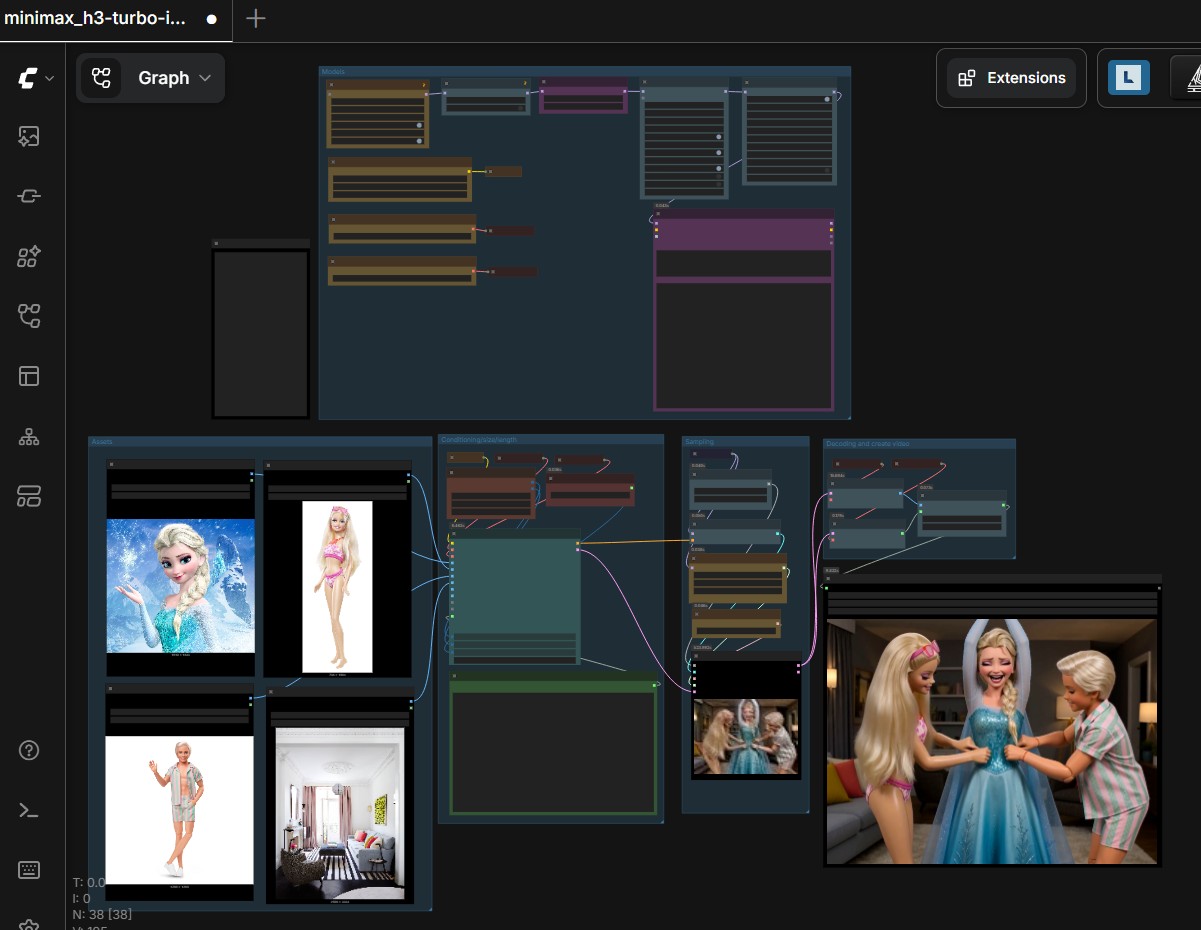
- Animation reference characters (Elsa, Anna, Ken, Barbie) used for workflow demonstration purpose only.
Ref2va examples
fl2va examples
Director example
ref2va + QWEN VL prompt enhancer
- Original prompt: "Person from image 1 kisses person of image 2 on a beach while carressing each other. Imtimate scene full of sensuality in a provoking pose".
- Final prompt
Standard workflows
Reference-to-video (Ref2va)
Use the enhanced Ref2va workflow to generate video and audio from a reference image while preserving the subject or visual direction.
View the enhanced Ref2va workflow
Multi-shot reference-to-video
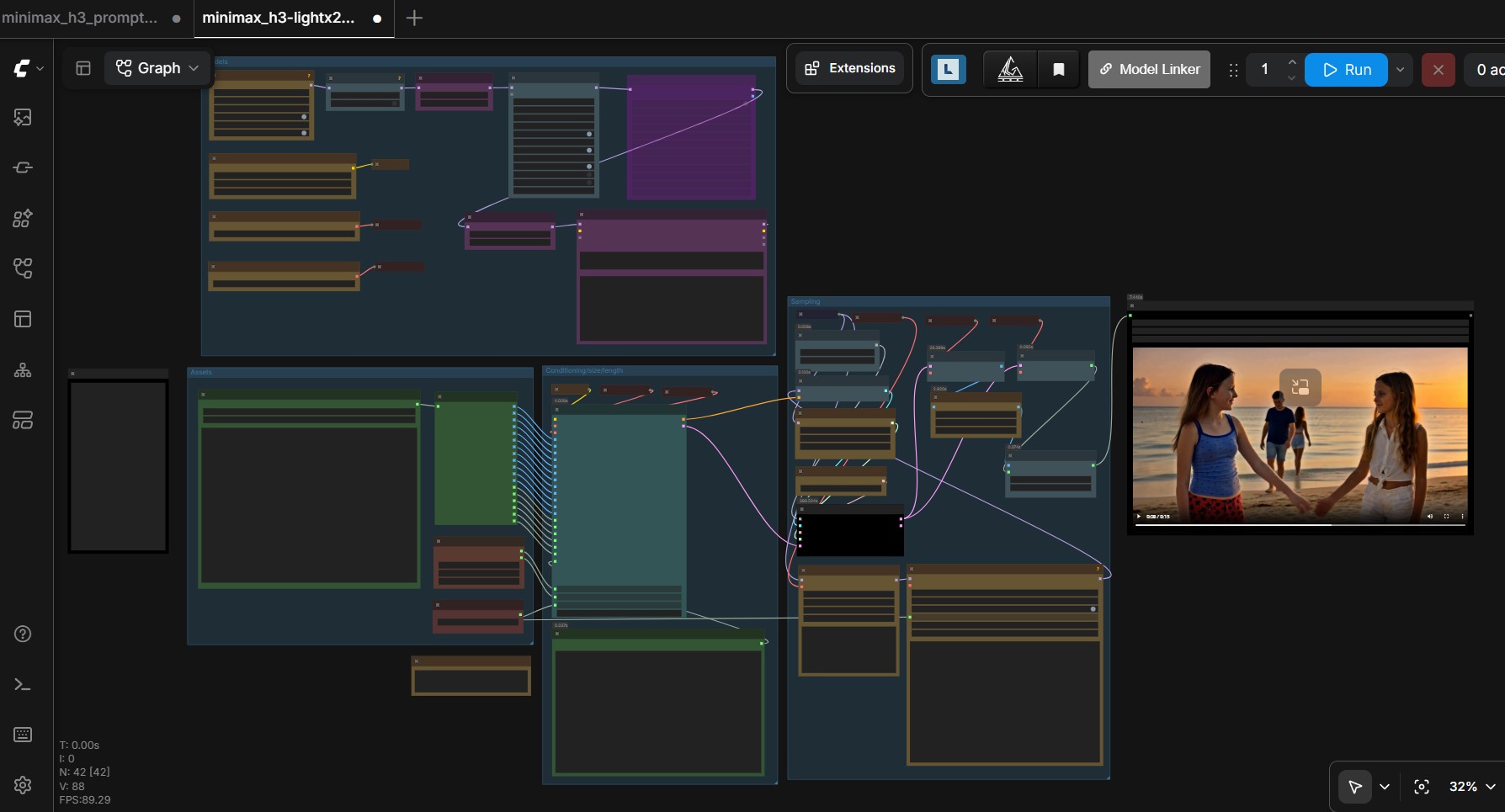
Use the LightX2V multi-shot workflow for connected shots, or choose a LightX2V or PDD Acc context-pin variant. The example below shows three connected 10-second shots from one reference image; actual duration depends on workflow settings and hardware.
View the multi-shot workflow
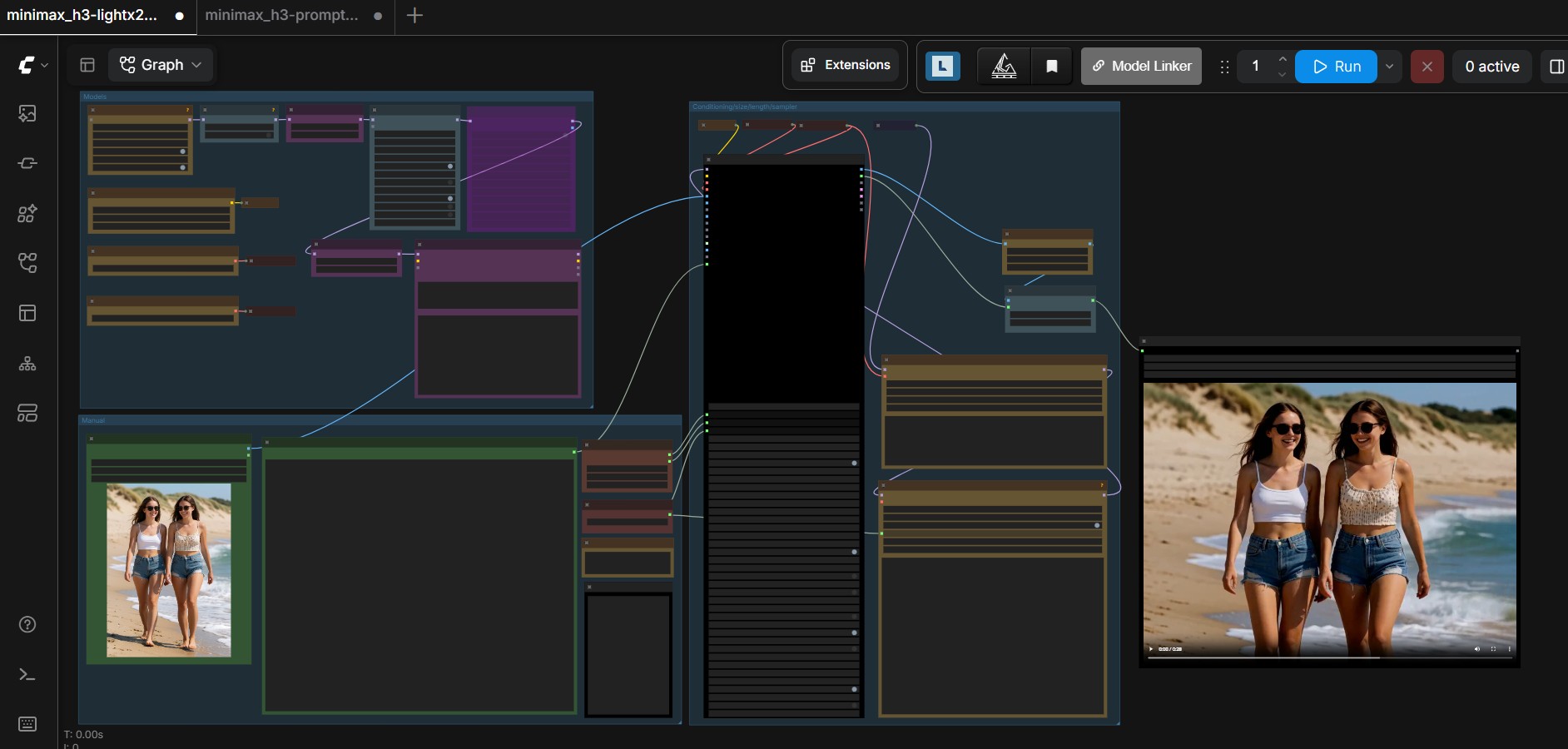
Image-to-video (i2v)
Use the enhanced fl2va image-to-video workflow with or without a turbo LoRA.
View the image-to-video workflow
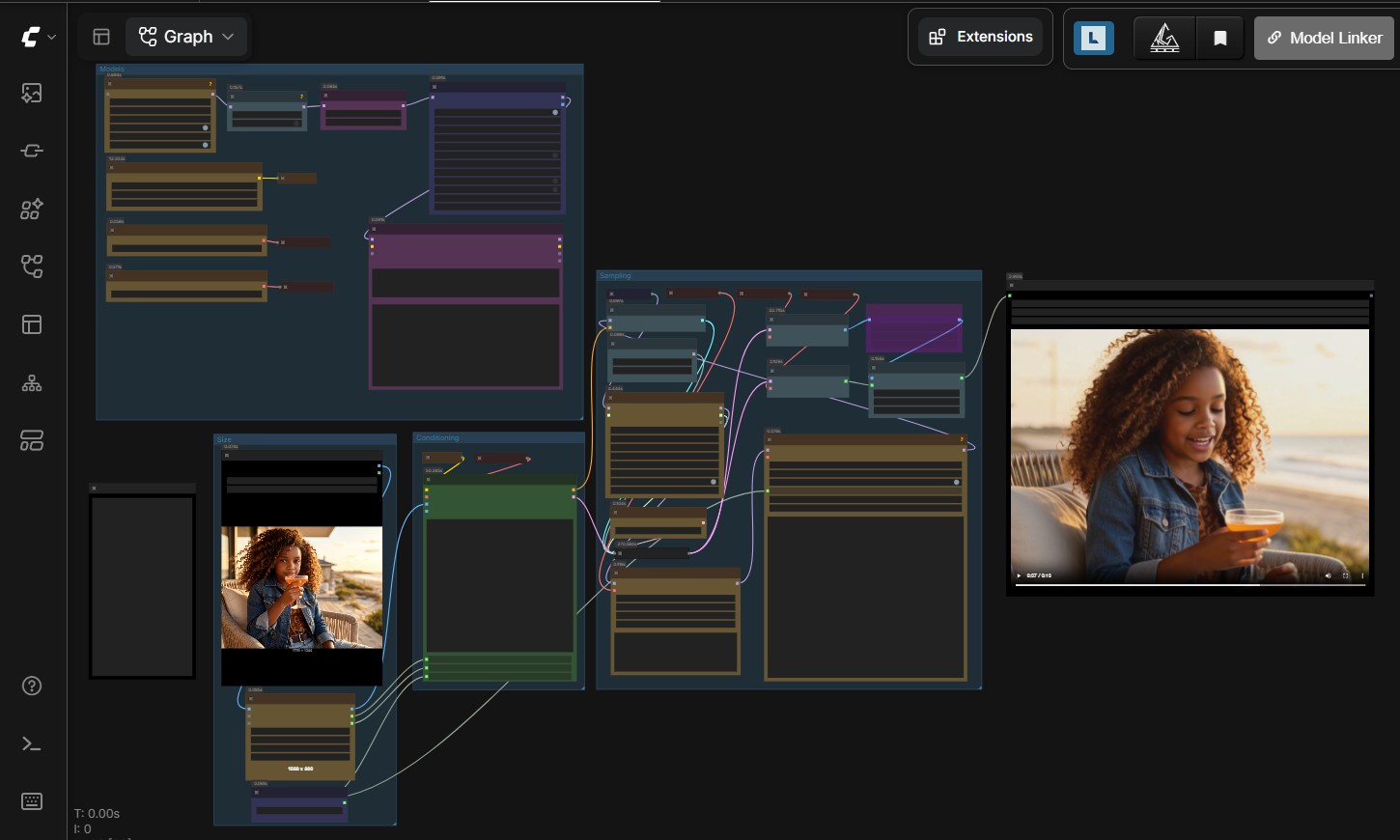
Text-to-video (t2v)
Use the enhanced fl2va text-to-video workflow to generate video and native audio from a prompt.
View the text-to-video workflow
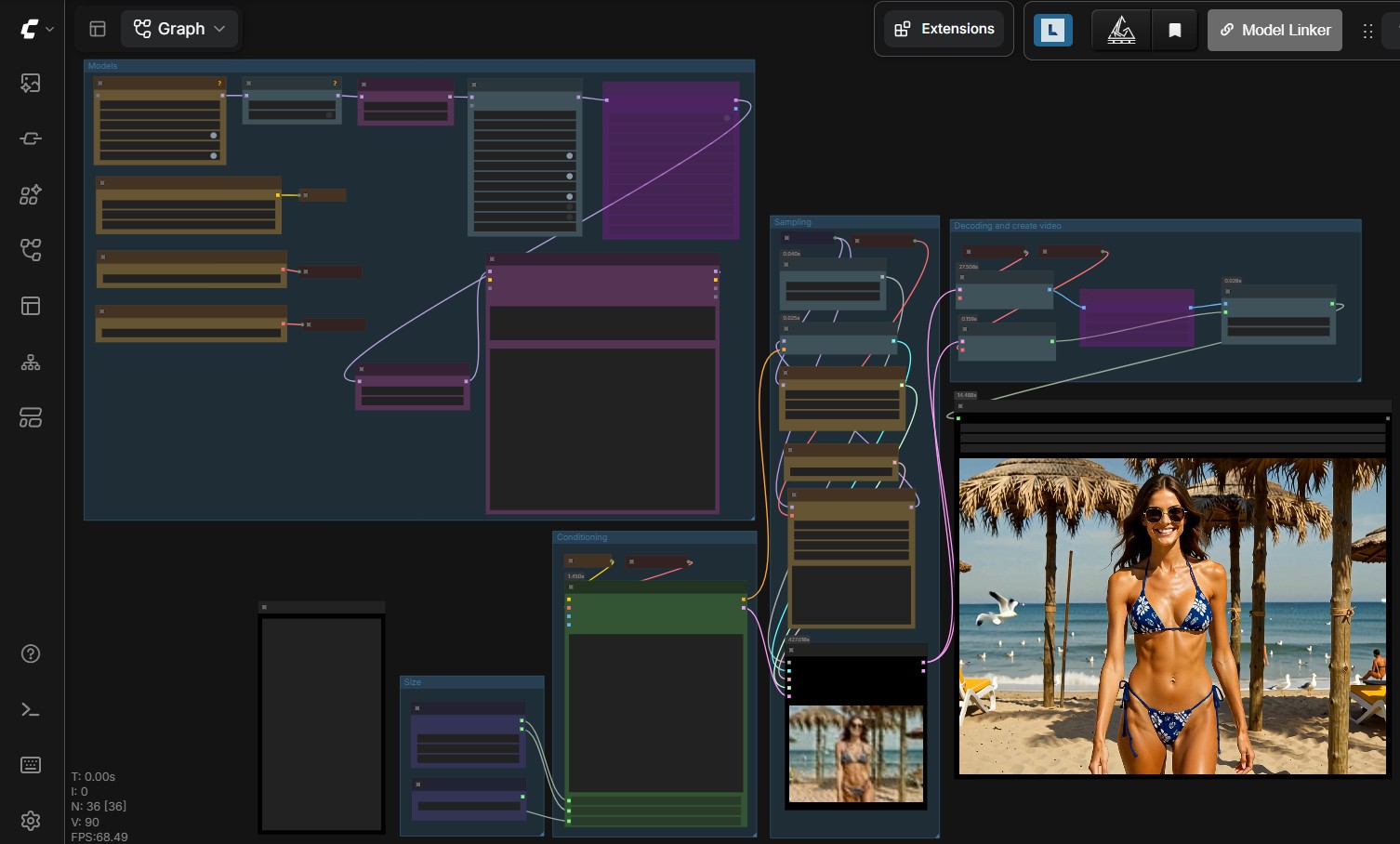
Advanced workflows and tools
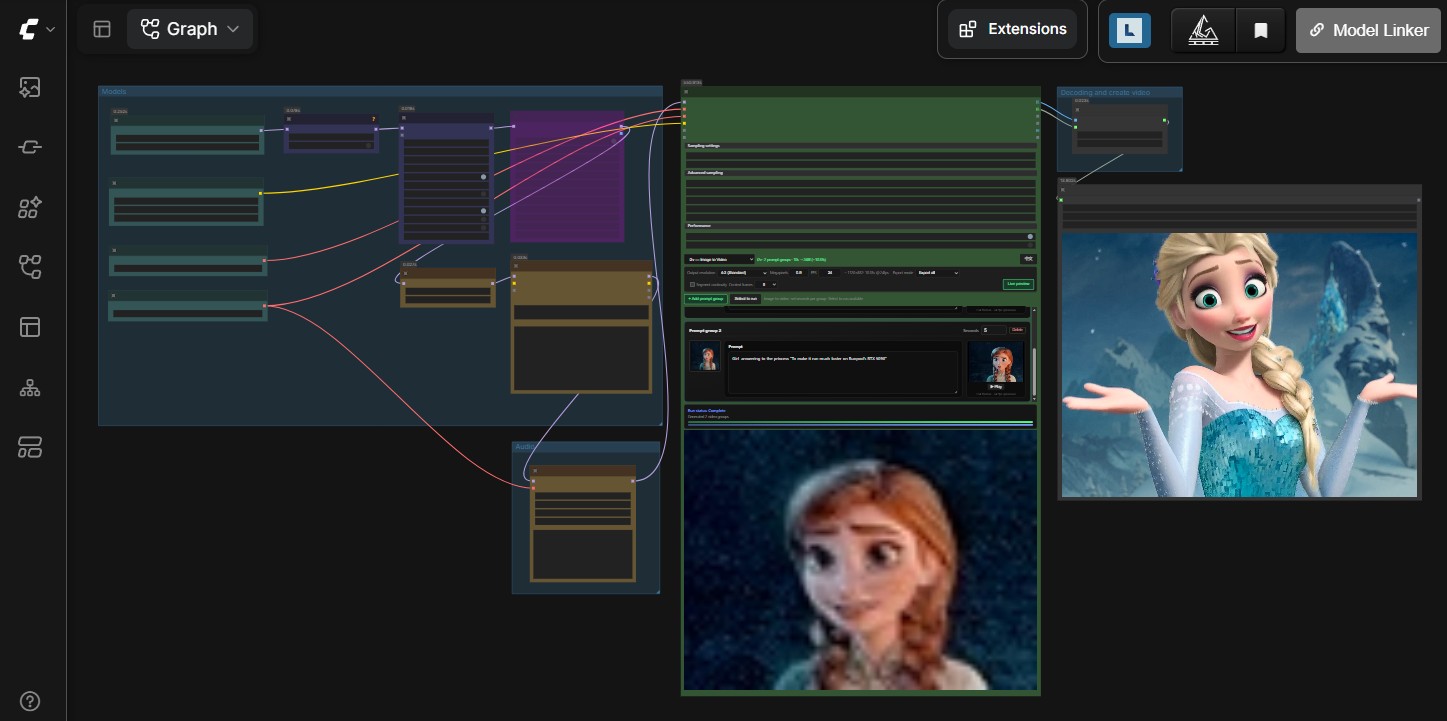
Director: all-in-one
Use Director to manage generation stages in a single workflow.
2 shot workflow
View the Director workflow shots
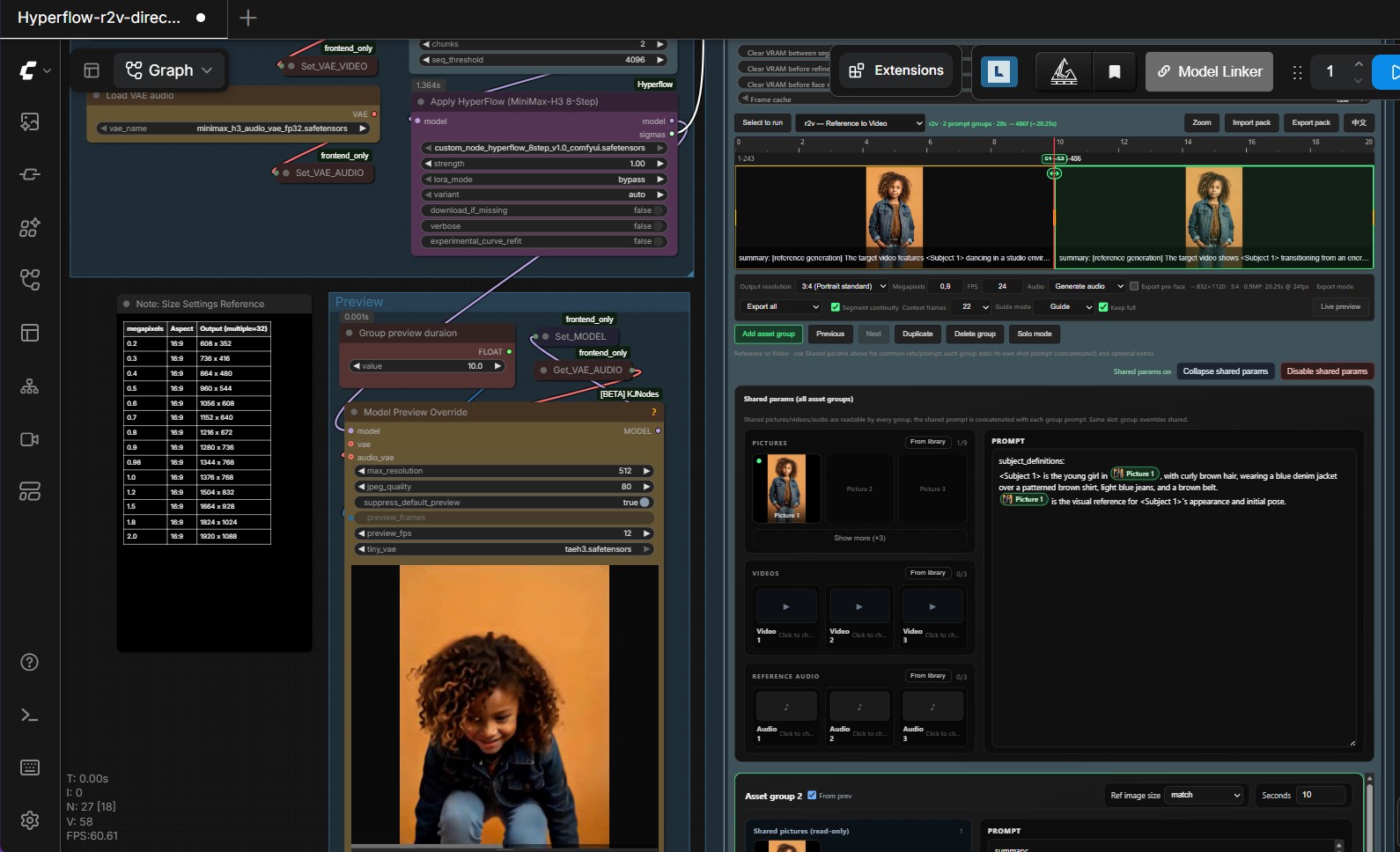
Motion continuity workflow
View the Director workflow continuity
Prompt tools
Choose a prompt workflow based on the model and interface you want to use.
| Tool | Best suited for |
|---|---|
Qwen3.8-27B-Uncensored with llama.cpp |
Local prompt generation and enhancement |
| Fantastic prompt builder and media manager | Building prompts while organizing reference media |
View the optional Heretic MiniMax-H2 Qwen-VL generation-tail workflow
[Workflow JSON] `prompt-generator-tail-pod.json`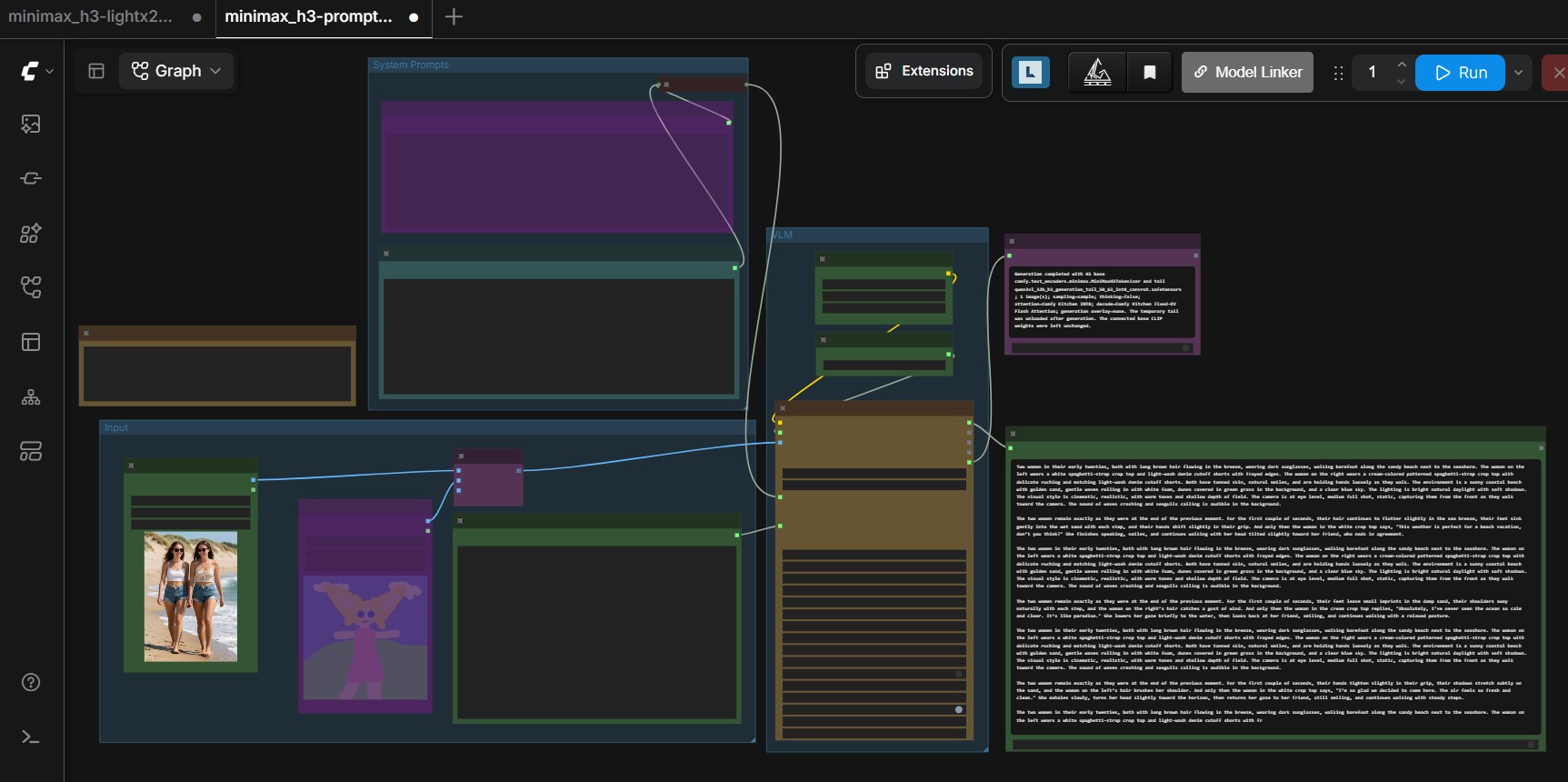
View the Qwen3.8-27B prompt enhancer
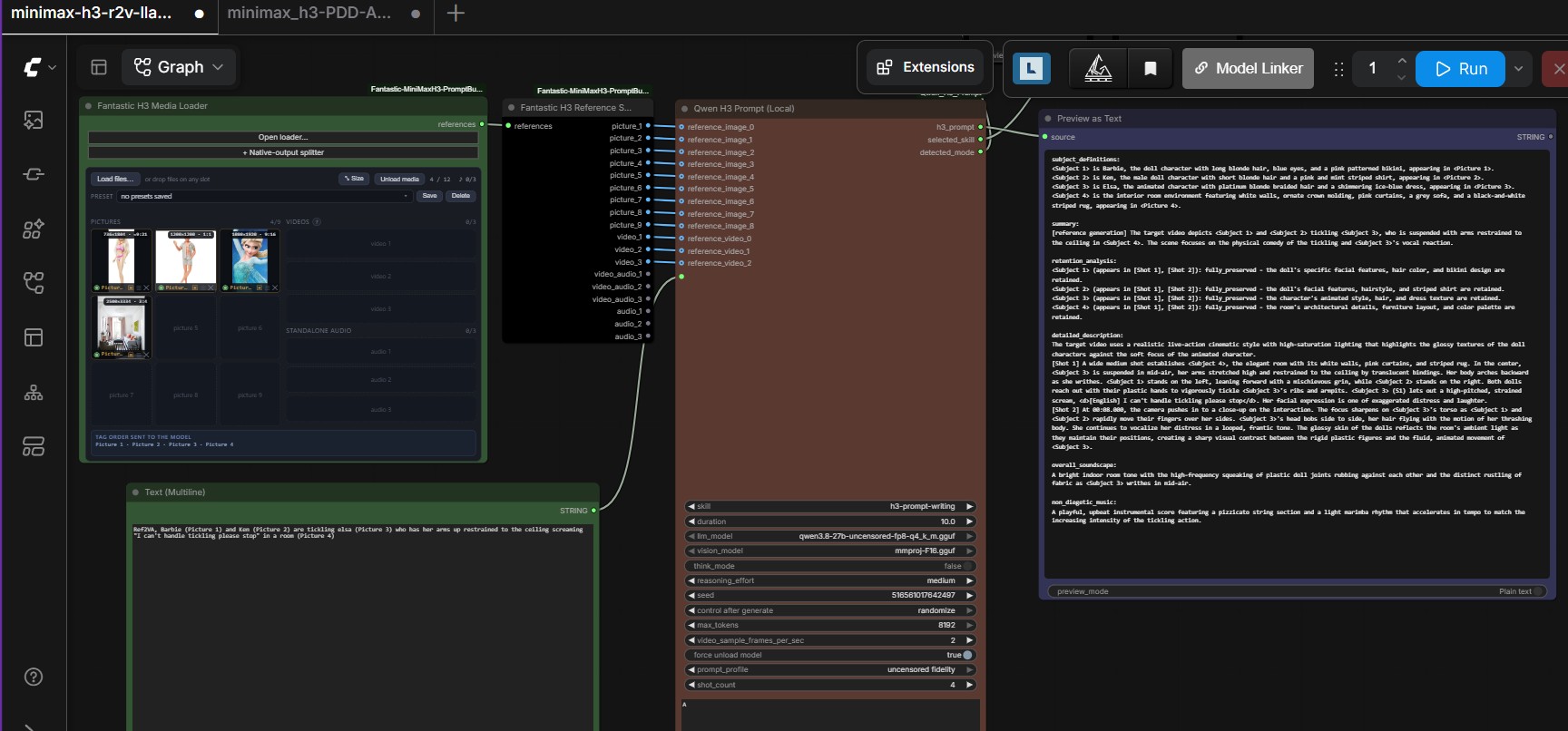
View the fantastic prompt builder and media manager
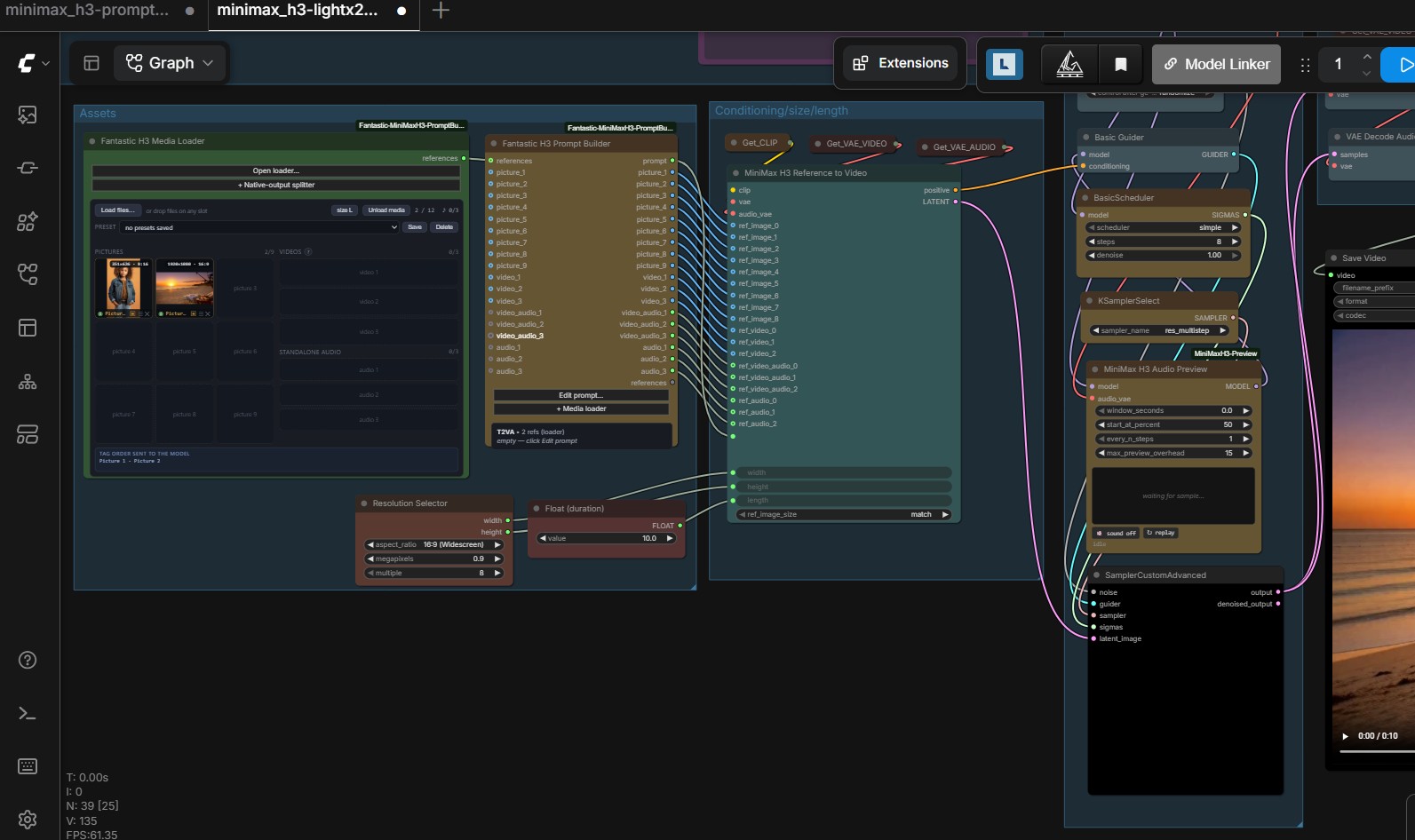
Video and sound preview
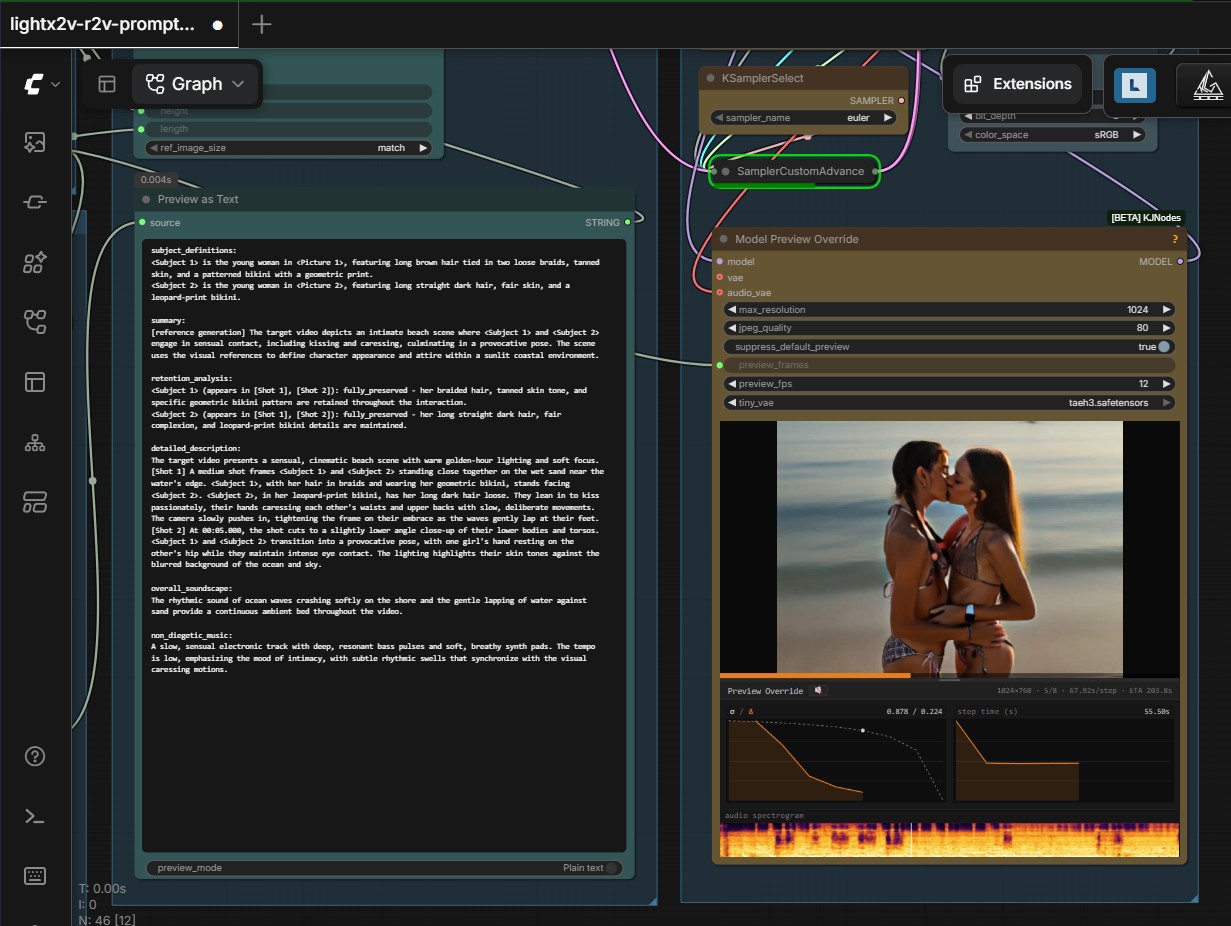
Preview generated video and audio inside the workflow before exporting the result.
View the video and sound preview workflow
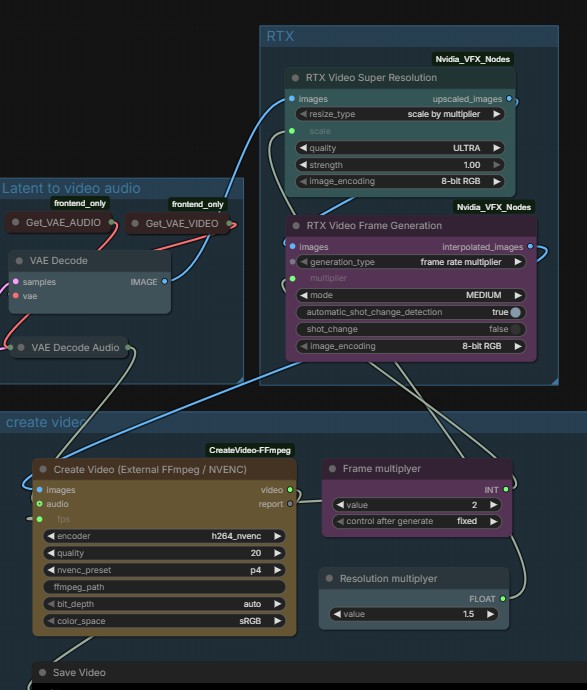
GPU accelerated video encoding with nvenc
10 times faster encoding when runpod host supports option, successful tested on RTX 6000 PRO, L40S, RTX 6000 MiG and RTX 6000 Ada.
Custom node in workflow
MiniMax H3: Omnichar vs. RefMod
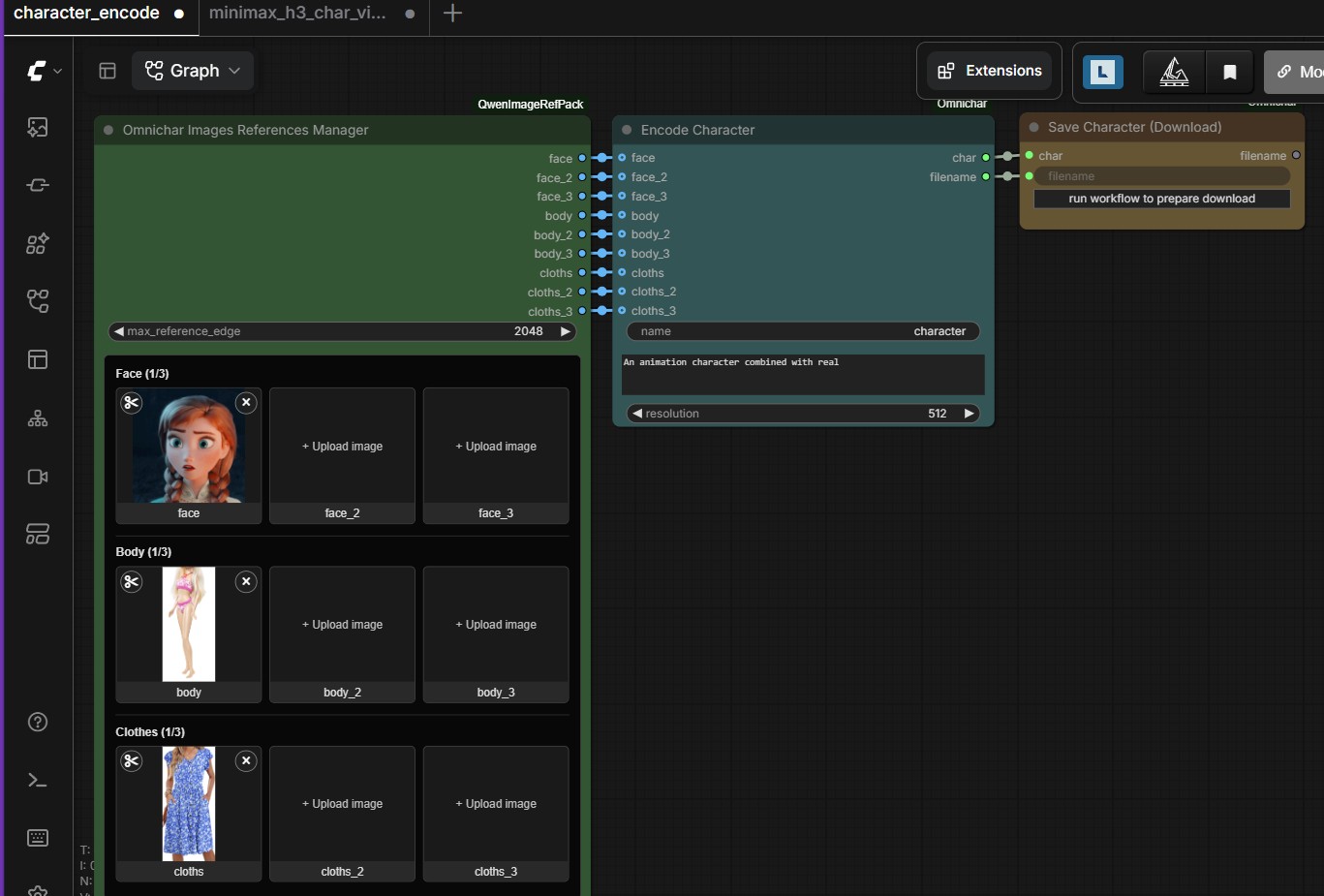
Both ComfyUI extensions provide reusable references to improve character consistency in MiniMax H3. However, they differ significantly in how references are prepared, stored, and processed.
The main difference: Omnichar offers a simpler, character-oriented workflow that can be assisted by a VLM (Vision Language Model), while RefMod provides a more advanced approach based on pre-encoded latent references, with optional LLM (Large Language Model) assistance for prompt generation.
Feature Comparison
| Feature | Omnichar | MiniMax H3 RefMod |
|---|---|---|
| GitHub | ComfyUI-Omnichar | ComfyUI-MiniMaxH3Mod |
| Primary purpose | Create reusable characters with consistent identity, appearance, clothing, and voice. | Create reusable, pre-encoded image, video, and audio references for MiniMax H3. |
| AI assistance | VLM: Can analyze reference images and help generate character descriptions. | LLM: Can generate structured prompts using stored reference mappings. |
| VLM/LLM required? | No. Character descriptions can also be entered manually. | No. Prompts can be written manually without an LLM. |
| Preparation | Select face, body, and clothing reference images and provide a character description. | Encode images, video, or audio into latent references using the corresponding H3 VAE. |
| Workflow | Create character → Save .char → Load character → Generate. |
Extract references → Save .safetensors → Load RefMods → Apply conditioning → Generate. |
| File format | .char |
.safetensors |
| Stored content | Reference images, locked character description, optional voice, and potentially a trained LoRA. | Full or compressed latent image, video, and audio references with metadata. |
| Reference compression | Stores character reference images; processing is performed by the target workflow. | Supports Full Reference and Compressed Reference modes with configurable token budgets. |
| Prompt handling | Decode Character prepares the character description and numbered references. | H3 RefMod Text Encode supports numbered references such as <Picture 1>, <Video 1>, and <Audio 1>. |
| Main nodes | Encode Character, Save Character, Load Character, Decode Character, Character References Split. | Create H3 RefMod, Create H3 RefMod Master, Load H3 RefMods, Apply H3 RefMod, H3 RefMod Text Encode. |
| Multiple characters | Multiple character files and reference sets can be used within a workflow. | Multiple independent RefMods can be combined with individual reference strengths. |
| Reference control | Primarily reference selection, ordering, roles, and image count. | Advanced control over extraction, resolution, masks, tokens, strength, copies, and step curves. |
| Video and motion references | Primarily focused on character consistency rather than storing motion latents. | Explicitly supports extracting and storing temporal video references. |
| Audio references | Optional voice sample included in the character file for MiniMax H3. | Audio references encoded with the H3 audio VAE; reliable speaker identity transfer is not yet validated. |
| LoRA support | Can include a trained LoRA and apply it through Apply Character LoRA. | Does not train LoRAs; uses stored latent references instead of trained model weights. |
| Other AI models | Supports workflows for other architectures, including FLUX.2 and Krea 2. | Specifically designed for MiniMax H3. |
| Ease of use | Easy: Create, save, select, and reuse a character. | Advanced: Requires more configuration of reference extraction and conditioning. |
| Main advantage | A single portable character file that can be reused across supported workflows and models. | Fine-grained control over the reference information supplied to MiniMax H3. |
| Main limitation | Character consistency still depends on reference quality and the generation model. | Compression may discard details, while larger reference token budgets increase processing costs. |
Which Method Should You Choose?
Omnichar — Recommended for ease of use
Omnichar is particularly suitable for users who want to create and reuse consistent characters without complex configuration. A VLM can simplify the preparation of character descriptions by analyzing reference images.
The resulting .char file can be reused across different supported generation models and workflows. This makes Omnichar a convenient solution for character-based image and video generation.
RefMod — Recommended for advanced MiniMax H3 workflows
RefMod is designed for users who need greater control over how reference information is encoded and applied.
An LLM can assist in generating prompts that reference stored images, video, and audio using the correct numbering and mapping.
Because reference extraction is performed in advance, the resulting latent files can be reused without repeatedly encoding the original source material.
RefMod also provides extensive controls for reference strengths, compression, token budgets, masks, and conditioning behavior.
Important Technical Distinction
Although Omnichar can be used with a VLM and RefMod with an LLM, neither AI component is mandatory.
The fundamental architectural difference is:
- Omnichar stores reusable character information, including source reference images and descriptions, in a portable
.charfile. - RefMod stores pre-extracted MiniMax H3 latent references in
.safetensorsfiles, which can be loaded directly into the H3 reference-conditioning pipeline.
RefMod's experimental H3 RefMod Text Encode also supports presenting visual references to the H3 vision/text encoder, so its functionality is not limited to text-only LLM prompting.
References
Character creator workflow
Hardware output comparison
These examples illustrate the quality, speed and generation limits of several GPU configurations.
| GPU | Characteristic |
|---|---|
| L40S | Good output quality |
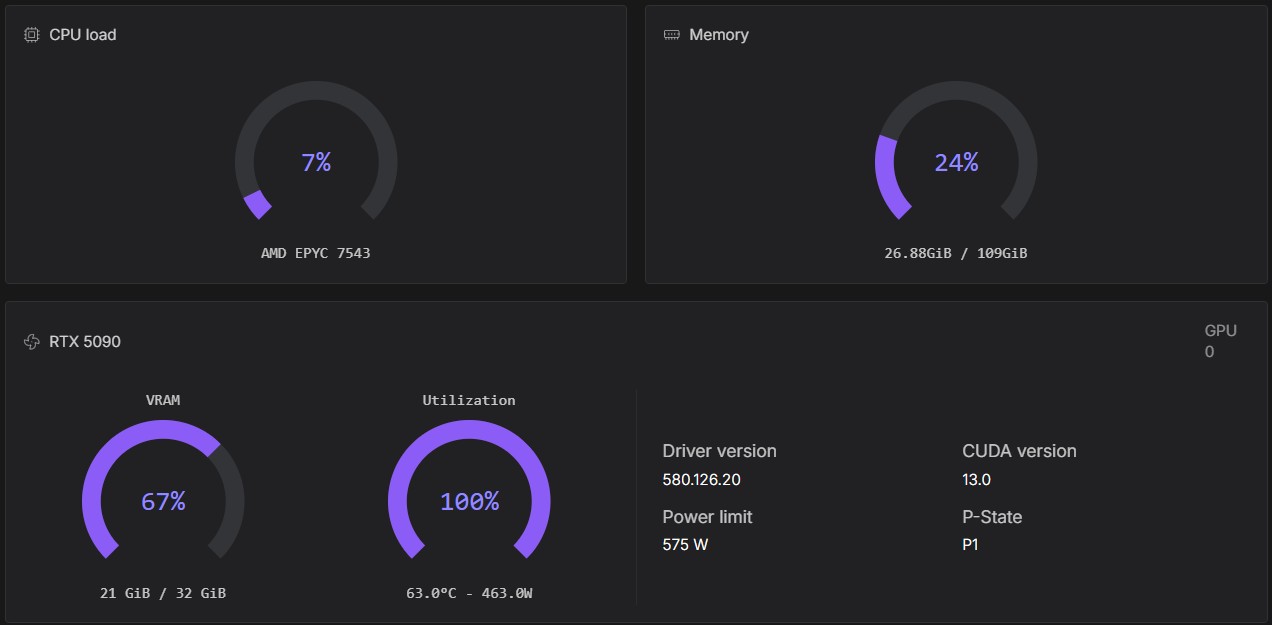
| RTX 5090 | Fast, with resolution and duration restrictions |
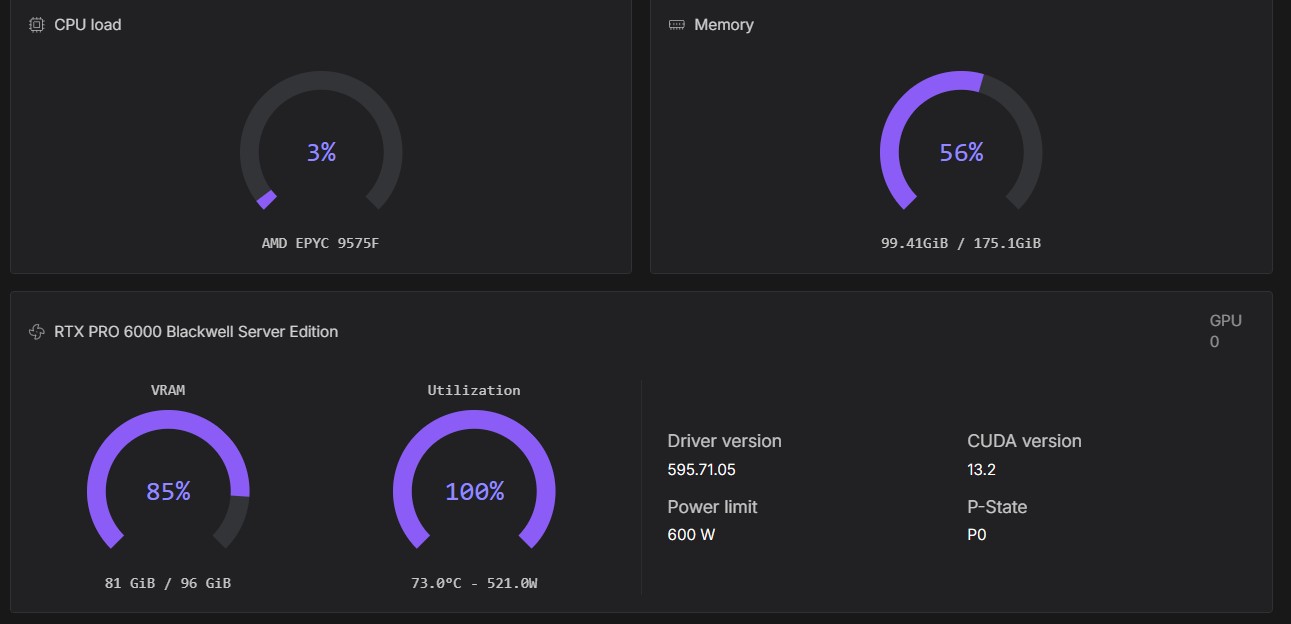
| RTX PRO 6000 | Fast, without those restrictions |
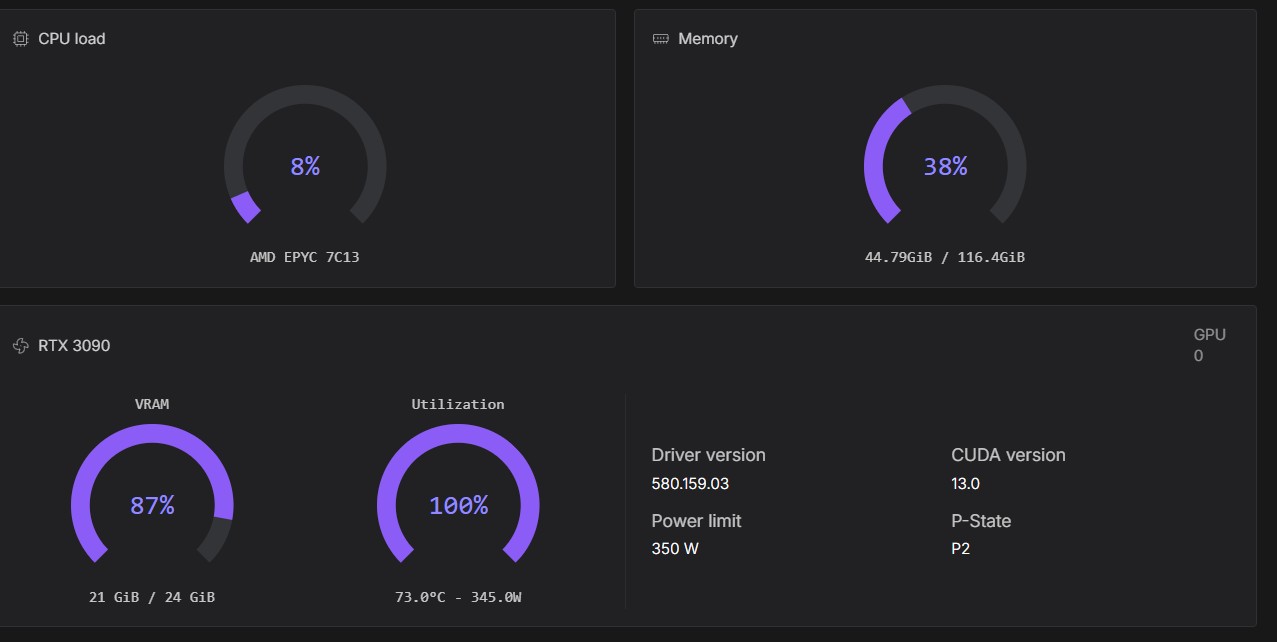
| RTX 3090/4090 | Slower, with resolution and duration restrictions |
View the hardware comparison screenshots
L40S — good quality, stable
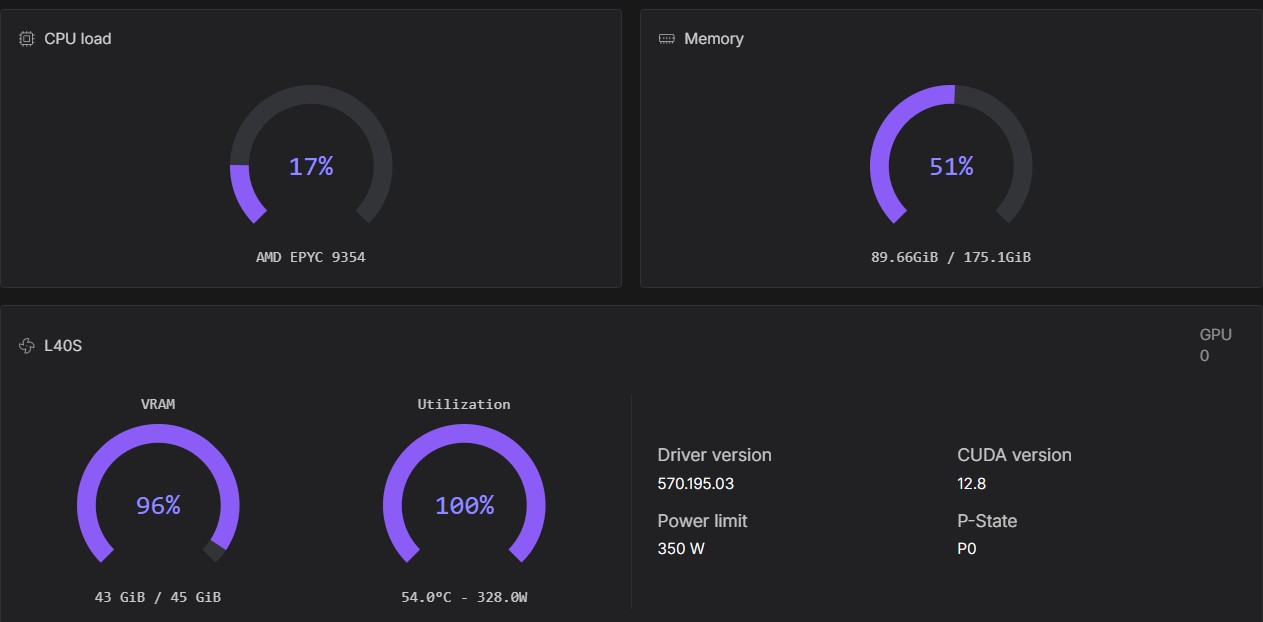
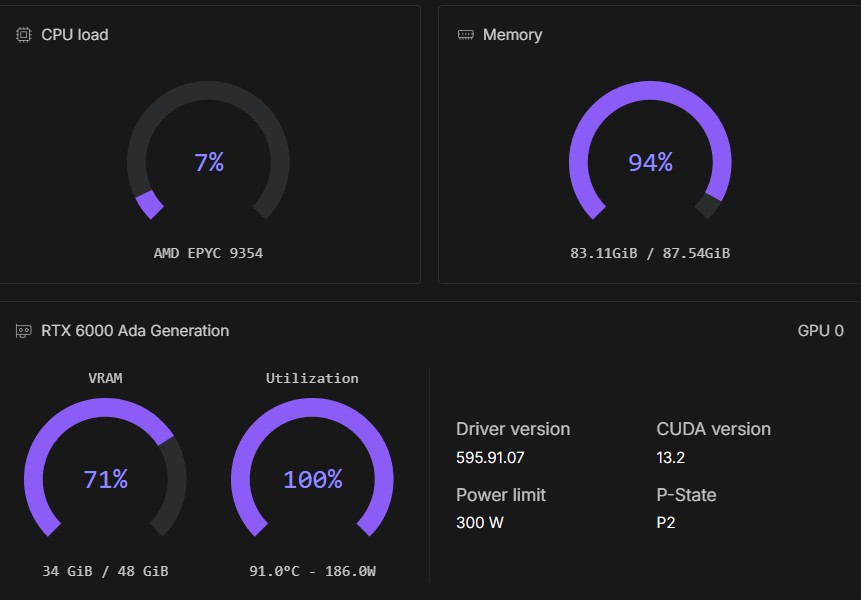
RTX 6000 Ada — good quality acceptable speed
RTX 5090 — fast, with resolution and duration restrictions
RTX PRO 6000 — fast, without restrictions
RTX 3090/4090 — slower, with resolution and duration restrictions